

Getting Started with CSS Animations
Learn how to create smooth animations using pure CSS. We’ll cover transitions, keyframes, timing functions, and when to use each approach.
Not all animations perform equally. Learn about GPU acceleration, frame rates, and debugging tools to ensure your animations run smoothly across all devices and browsers.
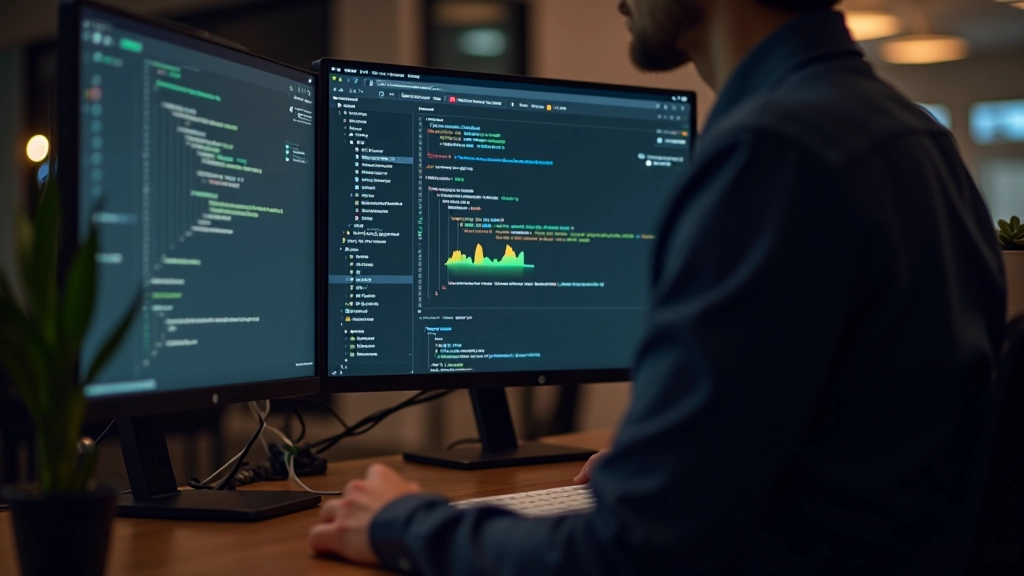
You’ve spent hours crafting the perfect animation. It looks smooth on your MacBook Pro. Then a user opens it on their mid-range Android phone, and suddenly the animation stutters. That’s a performance problem.
Here’s the thing: smooth animations aren’t just about good design—they’re about respecting your users’ devices and delivering a professional experience. A janky animation that drops frames can actually harm perceived performance, making your entire site feel sluggish even when everything else loads fast.
In this guide, we’ll cover the technical side of animation performance. You’ll learn about frame rates, GPU acceleration, rendering pipelines, and how to debug animations that aren’t performing as expected.

Most modern displays refresh at 60Hz, meaning they update the screen 60 times per second. This gives you a 16.67-millisecond window to render each frame. If your animation takes longer than that, you’ll drop frames and the motion won’t feel smooth.
60fps is the standard target for web animations. But here’s what you need to know: not all devices support 60fps. Older phones might max out at 30fps, while high-end devices support 120fps or higher.
If you’re dropping below 60fps, your animation will stutter. Users don’t consciously notice 58fps versus 60fps, but they absolutely notice 40fps versus 60fps. That’s the difference between smooth and janky.

The techniques covered in this guide work across modern browsers, but actual performance depends on your users’ hardware. A high-end laptop will always perform better than a budget smartphone. Test on real devices when possible—don’t just rely on your development machine. Browser DevTools can help simulate slower devices, but real-world testing is always more reliable.

Here’s where most performance problems come from: animating the wrong properties. When you animate properties like `width`, `height`, or `left`, you’re forcing the browser to recalculate layout for every single frame. That’s expensive.
GPU acceleration moves the animation work to your graphics card instead of the CPU. Only certain CSS properties trigger GPU acceleration. The big ones are `transform` and `opacity`. When you animate these, the browser doesn’t need to recalculate layout or paint—it just tells the GPU to move the pixels around.
transform
— Move, scale, rotate, skew elements
opacity
— Fade elements in and out
filter
— Apply blur, brightness, and other effects
clip-path
— Clip element shapes (modern browsers)
When you’re animating position or size, use `transform: translate()` instead of changing `left` or `width`. It’s the same visual result, but the performance difference is night and day. We’re talking about the difference between 30fps and 60fps on mobile devices.
You can’t optimize what you don’t measure. The browser’s DevTools have everything you need to see what’s actually happening during your animation.
Open DevTools, go to the Performance tab, and record a few seconds of your animation. You’ll see a detailed breakdown of every frame. The timeline shows you exactly what the browser is doing—parsing, rendering, painting, compositing. If you see tall bars on the main thread, that’s where your performance problems are.
Look for these indicators:
The Rendering tab shows what’s being repainted every frame. If you see large areas of the page highlighted in green, that’s a paint operation—and those are expensive. You want to minimize repaints during animation.


Some animation mistakes are easy to make but absolutely tank performance. Watch out for these.
Box-shadow looks great, but it’s one of the most expensive properties to animate. If you need a shadow animation effect, use opacity changes instead. Animate a hidden element with a shadow in and out rather than changing the shadow values themselves.
The `will-change` property tells the browser to prepare for an animation, which can help performance. But using it on too many elements actually hurts performance—each `will-change` costs memory. Use it sparingly, only on elements you’re actually animating, and remove it when you’re done.
Layout thrashing happens when you read layout properties (like `offsetWidth`) and then modify CSS in a loop. The browser has to recalculate layout multiple times. Batch your reads and writes to avoid this expensive cycle.
Performance optimization isn’t about creating the most complex animations—it’s about creating animations that work smoothly on every device your users have. That means understanding frame rates, using GPU acceleration, and testing on real hardware.
Start with the fundamentals: animate `transform` and `opacity`, measure with DevTools, and test on actual mobile devices. You’ll be surprised how much performance improves when you make these changes. The animations won’t look any different to users, but they’ll feel noticeably smoother.
Performance is a feature. When your animations run at 60fps consistently, you’re giving users a professional, polished experience. That’s what separates good web design from great web design.